OpenAI’s Codex Introduces Chronicle
On April 21, OpenAI announced a new feature for its desktop programming assistant Codex called Chronicle. This feature allows Codex to understand context by ‘seeing’ your screen, significantly reducing the need for users to repeatedly describe their tasks.
How Chronicle Works
Chronicle builds on Codex’s existing Memories feature, which learns from conversation history. It enhances memory by utilizing recent screen context. When users enable Chronicle, Codex runs sandboxed agents in the background that periodically capture screen images (limited to screen content, without microphone or system audio permissions) and temporarily stores these screenshots locally.
Codex then processes these images in a temporary session, extracting text via OCR, timestamping, and recording relevant file paths. Key information from the screen, such as code errors, document titles, and discussion content, is summarized into memory and saved as unencrypted Markdown files. Screenshots older than six hours are automatically deleted, while the generated memory files are retained for long-term access.
OpenAI highlights several practical use cases for Chronicle:
- Direct use of screen content: If a compilation error pops up, users can simply say, “Fix this error,” and Codex will recognize the error message and provide a solution without needing to copy and paste.
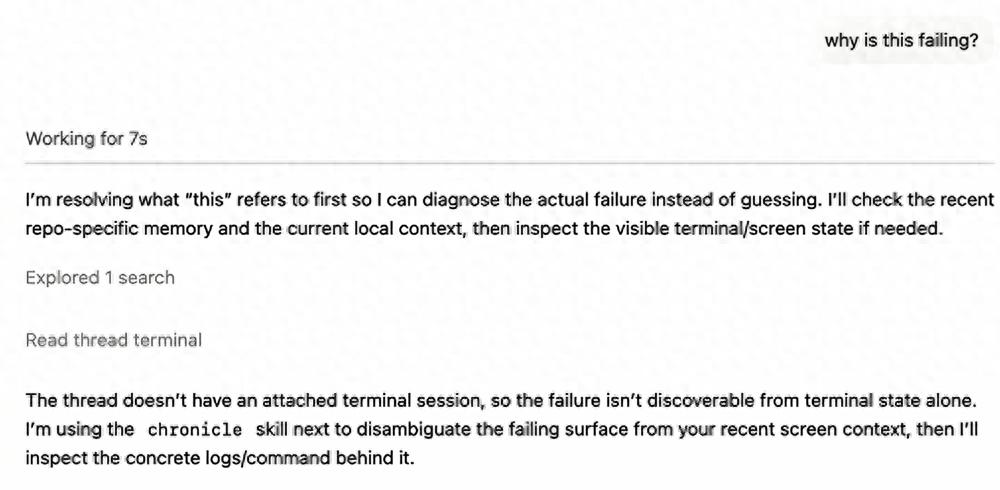
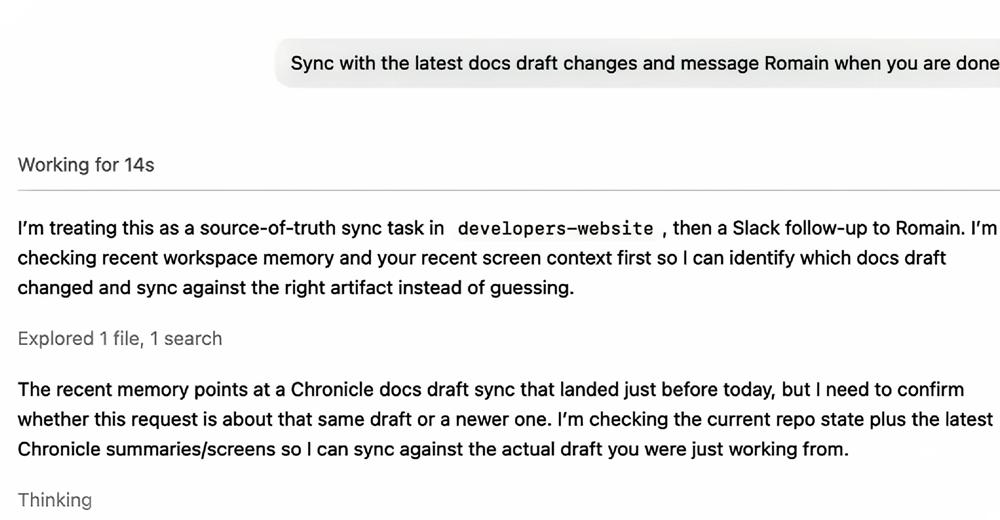
- Context completion: If users forget where they left off in a project, Chronicle can recall actions from two weeks ago to help Codex continue from where they paused.
- Remembering tools and workflows: If users frequently use a specific tool or workflow, Codex learns these habits through Chronicle. Next time, they can just say, “Deploy it,” and Codex will know which script to run.
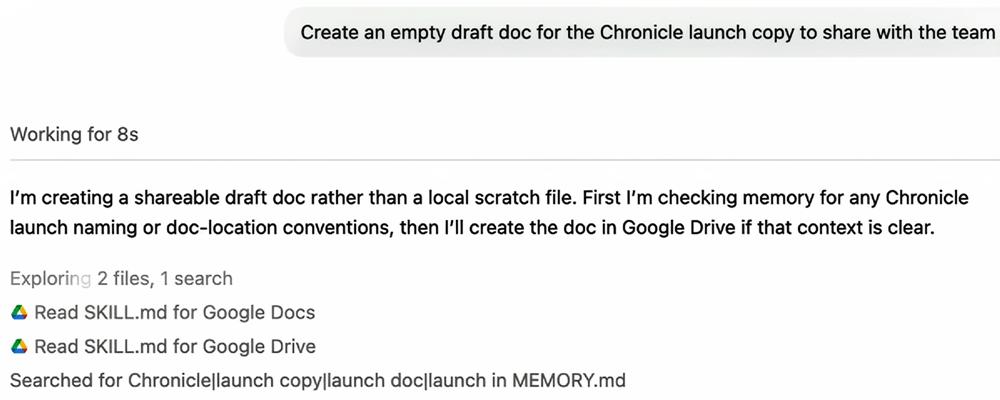
OpenAI emphasizes that Chronicle does not replace the ability to directly read files or APIs. When tasks require precise data sources (like specific Slack threads, Google Docs, GitHub Pull Requests, or internal dashboards), Codex will first identify which data source to use with Chronicle and then call that source for context understanding and accuracy.
Risks of Chronicle
While Chronicle offers significant benefits, OpenAI has outlined several risks and limitations:
- Screenshots are uploaded to OpenAI’s servers for processing, but they are deleted after generating memory. OpenAI claims that these screenshots are not retained or used for model training unless legally required.
- Generated memories are unencrypted and stored as plain text Markdown files, which means other applications on the user’s computer may access these files if they have permission. Users can manually edit or delete these files to make Codex forget certain information, but adding new information manually is not recommended.
- Chronicle can see everything on the user’s screen, including sensitive information like bank passwords and personal messages. OpenAI advises users to manually pause Chronicle during meetings or when viewing sensitive content and to disable memory features for specific conversation threads if necessary.
- Risk of prompt injection attacks is a high concern. If users view a webpage or document containing malicious instructions, Codex may follow these commands, as Chronicle treats screen text as context. Users are advised to avoid untrusted content while using Chronicle.
- Rapid consumption of API rate limits is a potential issue, as Chronicle requires continuous operation of agents in the background. For Pro subscribers, this could lead to exhausting quotas if many conversations or high-consumption features are used simultaneously. OpenAI acknowledges this as a design limitation that may be optimized in the future.
Currently, Chronicle is only available on macOS (requiring screen recording and accessibility permissions) and is limited to ChatGPT Pro subscribers ($100 per month), with no support for the EU, UK, or Switzerland due to local privacy regulations (like GDPR).
How to Safely Use Chronicle
To effectively use this AI tool that can “see your screen,” users must learn how to safely enable and control it:
- Open the Codex application and go to Settings.
- Click on Personalization and ensure Memories are enabled.
- Find the Chronicle toggle under Memories and turn it on.
- Read and agree to the pop-up consent dialog (including privacy and risk information).
- The system will prompt for screen recording and accessibility permissions. If declined, Chronicle will not function.
- After setup, users can choose to “Try it out” or start a new conversation thread.
- If macOS indicates permission is denied, manually go to: System Preferences → Privacy & Security → Screen Recording / Accessibility, find Codex, and enable it. If permissions are restricted by corporate policy, Chronicle will not start.
Pause or Disable Chronicle:
Through the Codex icon in the menu bar, users can select Pause Chronicle or Resume Chronicle. Pausing will stop generating new screen memories, while completely disabling will require going back to settings to turn off the Chronicle toggle. Users can also control the use of existing memories in individual conversation threads.
Conclusion
The launch of Chronicle marks a significant step in AI assistants evolving from “passively following commands” to “actively understanding context.” For users who frequently switch windows, handle multiple projects, or often forget where they left off, Chronicle can significantly reduce repetitive descriptions, making Codex feel like a true assistant that understands their work habits.
OpenAI’s design of Chronicle as a feature that can be paused at any time and stores memories locally (unencrypted) reflects a concession to user control. However, the convenience comes with clear costs: rapid consumption of rate limits, prompt injection risks, and server processing of screenshots. Especially the unencrypted local memory files mean that any program with access to the user’s disk could read the AI memories. OpenAI advises users to carefully assess risks before enabling Chronicle.
For those seeking extreme efficiency and willing to accept the associated risks, Chronicle is undoubtedly one of the most advanced AI context solutions available today. OpenAI is accelerating the transformation of Codex into a desktop super application, with Chronicle being a crucial milestone on this path.
Comments
Discussion is powered by Giscus (GitHub Discussions). Add
repo,repoID,category, andcategoryIDunder[params.comments.giscus]inhugo.tomlusing the values from the Giscus setup tool.